Brand Backgrounds
Professional background images for Microsoft Teams meetings, Zoom calls, and presentations. All backgrounds follow brand guidelines and are optimized for 16:9 displays.
Critical Rules
Background Usage Rules
BG-001Backgrounds must be used at original 1920x1080 resolutionBG-002Never add text, logos, or watermarks to backgroundsBG-003Do not apply filters, effects, or color adjustments
Background Collection
 Professional
 Abstract Pattern
Minimalist geometric pattern with brand colors
 Executive
 Boardroom View 1
Modern boardroom with cityscape
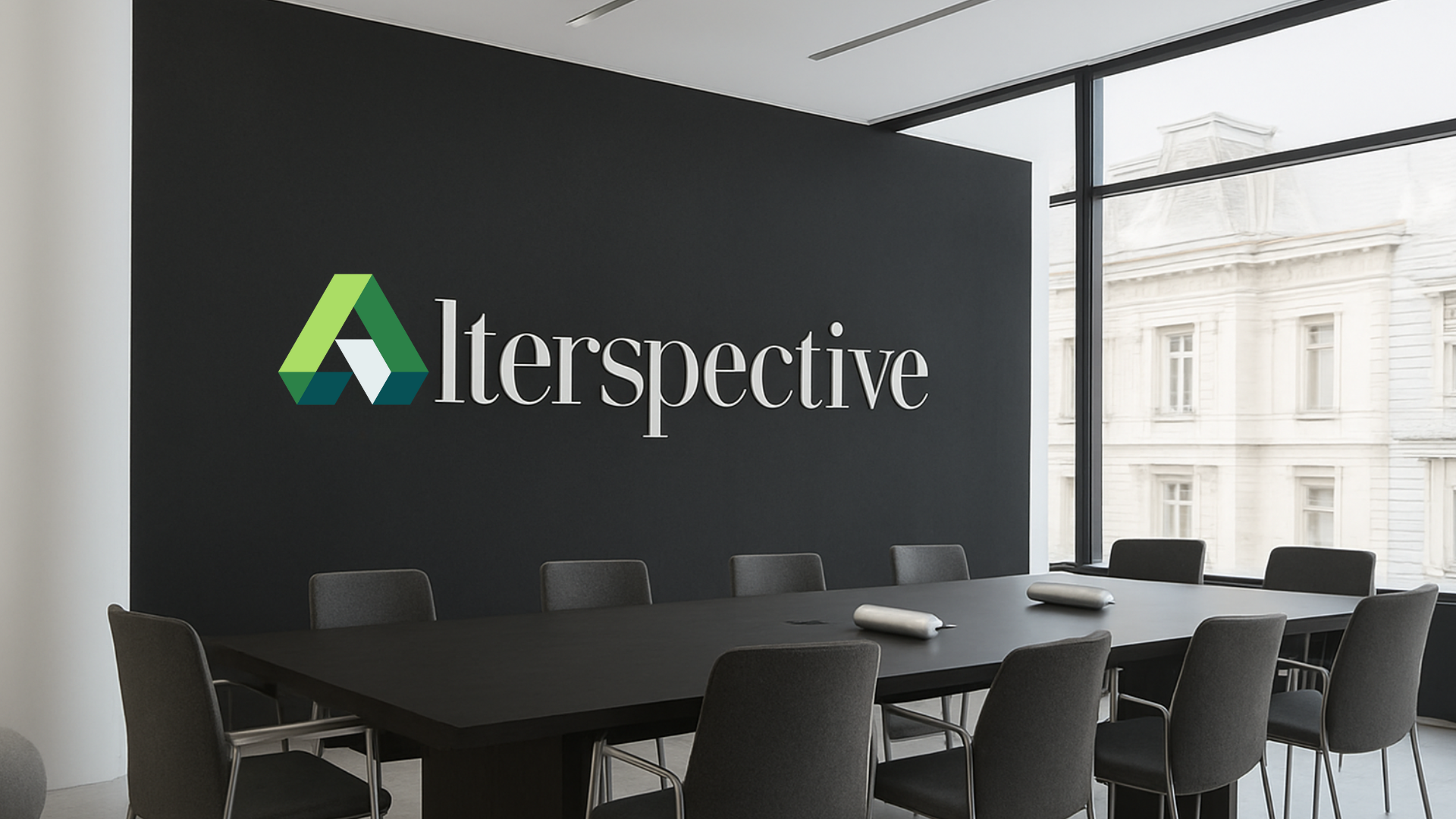 Executive
 Boardroom View 2
Elegant boardroom interior
 Professional
 Boardroom Core
Clean boardroom setup
 Collaborative
 Boardroom People
Boardroom with team collaboration
Usage Guidelines
Do
Use for Microsoft Teams meetings and presentations
Don't
Apply filters or effects to backgrounds
Do
Maintain original aspect ratio (16:9)
Don't
Crop or resize unevenly
Do
Use as-is without modifications
Don't
Add text or overlays to backgrounds
Do
Download in PNG format for best quality
Don't
Convert to low-quality formats (JPEG with compression)
Platform Setup
Microsoft Teams
- Download the desired background image
- In Teams, go to Settings > Background effects
- Click "+ Add new" and select the downloaded PNG
- Choose the background and click "Apply"
Zoom
- Download the background image to your computer
- In Zoom, go to Settings > Background & Effects
- Click the "+" icon and choose "Add Image"
- Select your downloaded PNG file
Google Meet
- Download the background image
- Join or start a meeting
- Click the three dots > Apply visual effects
- Click "Upload background" and select the image
PowerPoint / Keynote
- Download the background image
- Insert > Picture > Picture from file
- Select the background image
- Right-click image > Send to Back
Download All Backgrounds
Get the complete background collection in one package containing all 5 backgrounds ready for Microsoft Teams, Zoom, and presentations.